Google Colab for data tracking and automation

Tips for data cleaning, set up and using APIs
Mariia Novoselia is a 2026 RJI Student Innovation Fellow partnered with Technical.ly. The RJI Student Innovation Fellows will be sharing their innovative work throughout the summer in Innovation in Focus.
When the challenge is multi-source data collection, the solution is creativity, diligence and code.
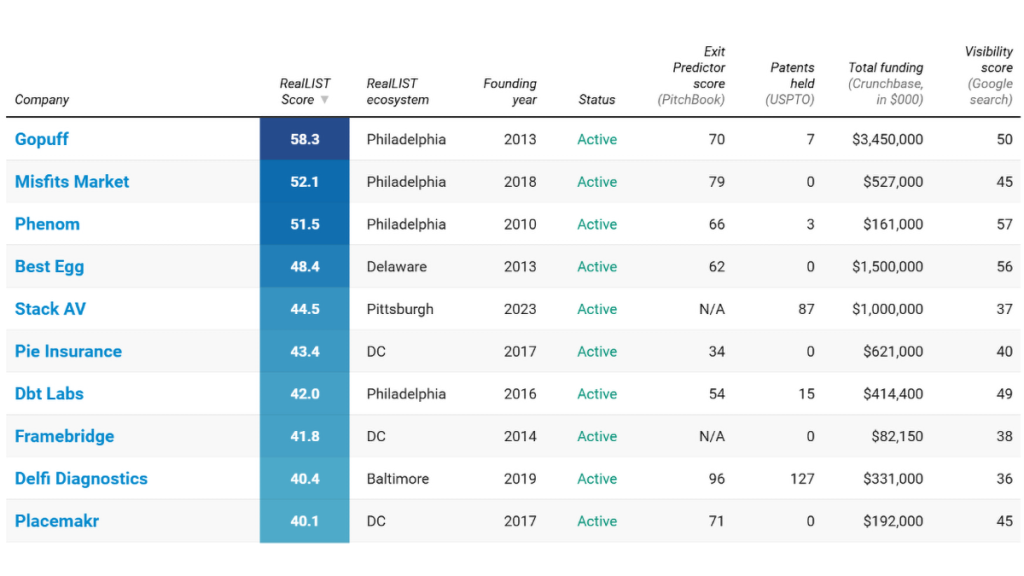
In 2025, Technical.ly, an independent newsroom that covers local innovation around the United States, released its RealLIST Startup Tracker. The tracker is a tool that helps people understand the health and potential of their local innovation ecosystems by exploring startups.
The first version of the tracker was built through manual data collection of over 200 startups across multiple sources. What we’re building now, the RealLIST Startup Tracker 2.0, will take advantage of API automations, making the process smoother and faster.
Here are the steps that helped us get ready to begin building automations
Cleaning data and setting up annual surveys
Each year, Technical.ly sends out surveys to young, high-growth companies with the potential to have local impact. The questionnaires go out via SurveyMonkey, and the results are exported to a Google Sheet. Before adding the latest companies to the master list, we needed to make sure the information was properly formatted.
Dirty data is common in surveys and can include misspellings, capitalization errors, and different abbreviation styles. Instead of manually going through every data point and fixing the same mistakes over and over again, we created a cleaning script in R, an open-source coding language, that uses a set of rules to clean up common issues. For example, we asked startups to list their founders, and the results varied from “Name and Name” to “Name & Name” to “Name / Name.” Our script will catch the alternatives and replace them with a standard comma.
We also saw that some survey respondents listed their titles next to their names. While this is useful for reporting, it can break code in later stages, so we added a line that removes anything that is in parenthesis. As a precaution, all of these fixes are saved as a separate column, so anyone can verify what information was removed as a result of our cleaning.
Similarly, we added rules that fix dirty data in the locations column. We added rules that make sure states are always stored as two-letter abbreviations. For example, variations like “Virginia”, “Va” or “va” all become “VA.”
If you have basic R skills, you can use our script as a template to add your own rules and expedite the data cleaning process. But remember, dirty data can be tricky and varied, so always double check your work to catch any instances that this automation may have missed.
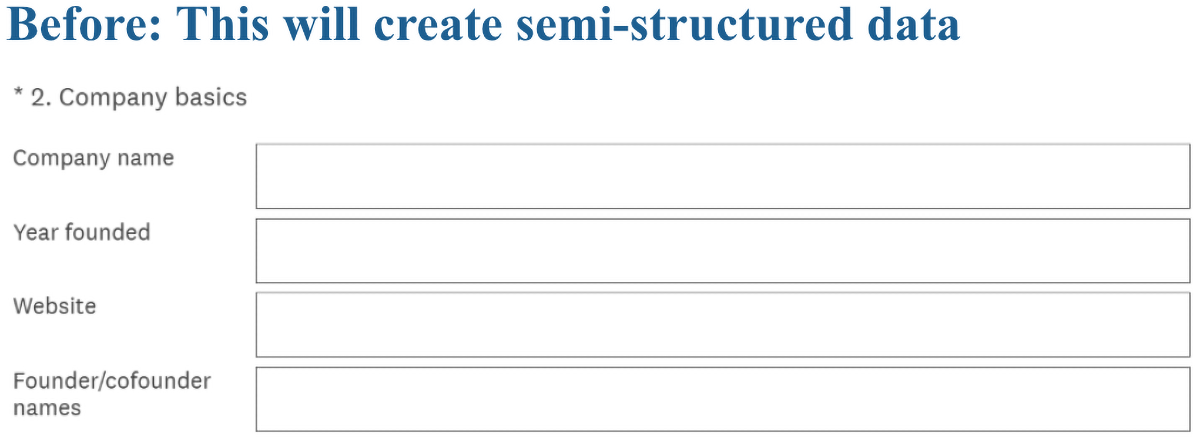
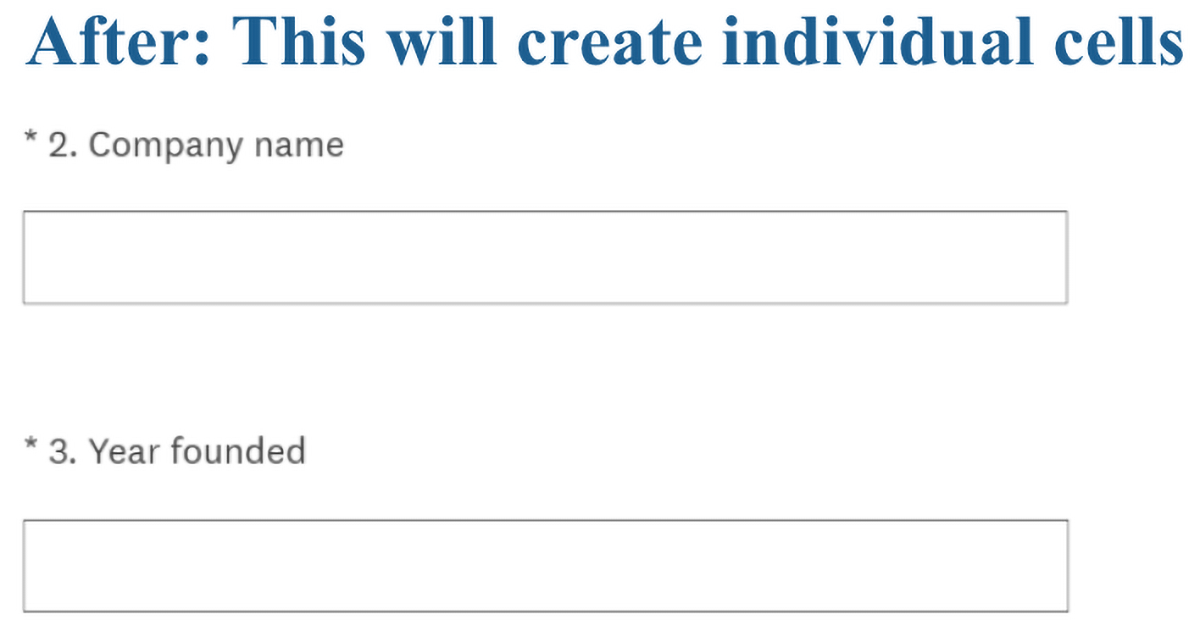
Our script also takes semi-structured data, which is when a single cell contains multiple data points like “First name: Mariia; Title: RJI Student Fellow”, and separates it into clean, independent columns. While we had to use a cleaning script for this year’s data, in the future, Technical.ly plans to update their survey to step away from semi-structured data by making every data point its own question in the survey form.
Importing and exporting data with Google Colab
We decided to use Google Colab as the main platform for running our automation code. Colab allows users to write and run code in the browser, so anyone from the team can edit and execute our Python code without having to download and install Python on personal devices.
We used this script to import several Google Sheets into our first Colab notebook. The first code chunk will prompt you to sign into your Google account. All you need to do to use our code and import your own Google Sheet into Colab is a Google Sheet ID. A Google Sheet ID is a string of characters inside your Google Sheet URL.
This is what a typical URL looks like:
docs.google.com/spreadsheets/d/123abcd4567efghij89klmn/edit?gid=0#gid=0The character string highlighted in bold is the Sheet ID. It is always located after spreadsheets/d/ and stops before /edit. While it is possible to import a sheet based on its name, using a sheet ID is more reliable because it will always stay the same for each individual sheet.
After we imported our sheets and ran some more functions, we wanted to export our new sheet back to the drive to a specific folder. The script above also contains code for doing just that. The only thing you will need is your unique Google drive folder ID.
The folder ID is a string of characters in the URL that’s located after folders/, like so:
drive.google.com/drive/folders/12abcde45fghij6789klmnOpen Data Portal account and API key
Technical.ly’s startup tracker uses data from multiple sources, one of which is the US Patent & Trademark Office.
In order to access USPTO data through an API, we needed to set up an Open Data Portal (ODP) API key. We created accounts on USPTO.gov and ID.me and then linked the ID.me account to the USPTO.gov account. The full instructions for setting this up can be found on USPTO’s website.
Each API key is unique and should not be shared with anyone. The same ODP API key can be used to access several API wrappers, such as the Patent File Wrapper API, which lets you search the electronic file record of patent applications and patent related data, or the Final Petition Decisions API, which lets you search for final agency petition decisions from the Commissioner for Patents.
Google Colab allows users to store their API keys as “secrets,” keeping them completely private to their Google account, even if they share the notebook with others.
To store an API key as a secret, click on the key icon on the left side of the screen and then select “Add new secret.” Type in the name of your API key — we used USPTO_API_KEY — and then paste the actual API key into the “Value” box. Make sure to toggle “Notebook access” on, so that the Colab notebook you are working in can use your API key.
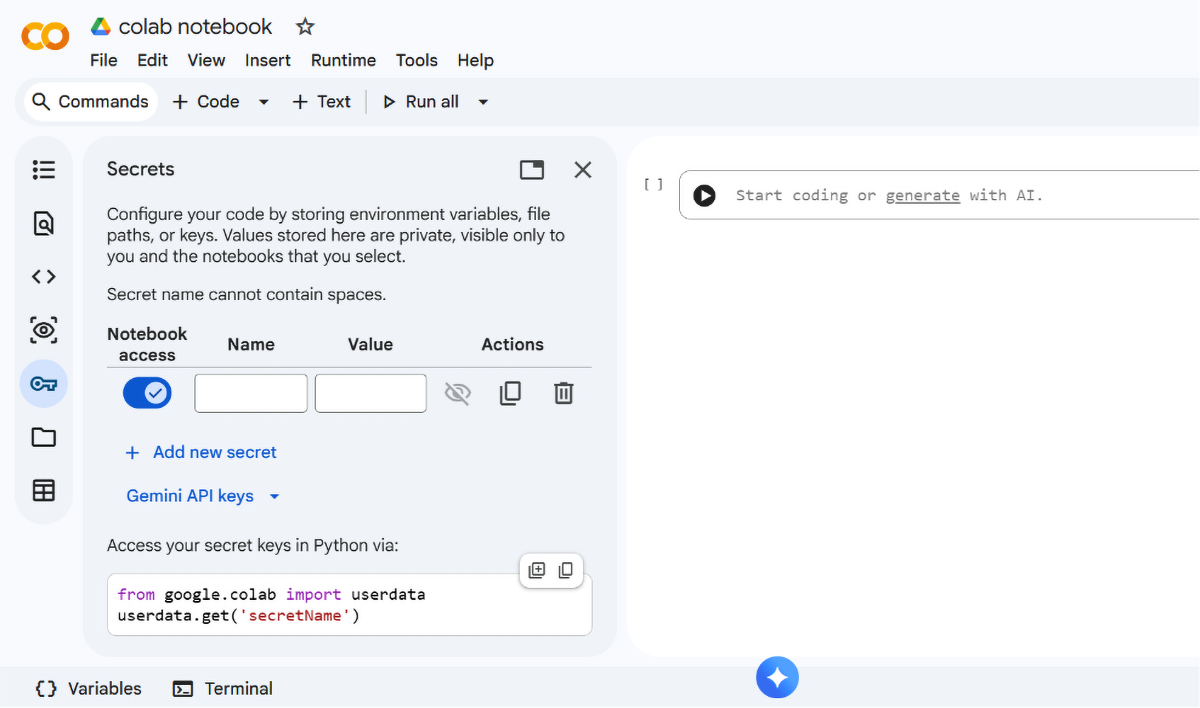
Now you are ready to use your API key without having to expose it in your code.
What’s next?
Next we are going to use Python and APIs to get data insights from different industry-standard sources like DataForSEO, measuring Google visibility through search results, Apollo.io for company employee counts and more. We will also build a custom visualization that will allow users to filter startups by their status, original location and current headquarters.
Cite this article
Novoselia, Mariia (2026, June 22). Google Colab for data tracking and automation. Reynolds Journalism Institute. Retrieved from: https://rjionline.org/news/google-colab-for-data-tracking-and-automation/